Connect via MCP
ORQO can act as an MCP server, exposing a project's Long-Term Memory and document library to external AI clients — Claude Desktop, IDE coding agents, or any tool that speaks the Model Context Protocol. Your AI tool of choice connects to ORQO with a bearer token and gains a set of tools for searching, navigating, and reading the project's knowledge — and for contributing new documents back to it.
This is the outbound direction — ORQO is the server, and your external client connects to it. It is the mirror image of two other paths:
- Connect an MCP Server is inbound: you add someone else's MCP server so your ORQO agents can use its tools during workflow runs.
- The API is for scripts and webhooks that trigger workflows. The MCP gateway is for AI agents that want to read and reason over your project's accumulated knowledge.
There is one endpoint for everything: https://orqo.ooopps.com/mcp. The token decides which projects a client can reach.
How access is decided
Two independent switches control what a connected client can see. Both must allow a project for it to be reachable:
- Token scope — when you create an API token, you choose whether it is organization-wide or limited to specific projects.
- Per-project toggle — each project has an Expose as MCP Server switch. It is off by default and acts as the project owner's kill switch.
Effective access is the intersection: the projects a token grants and have the toggle on. Flipping a project's toggle off immediately hides it from every token — even organization-wide ones — without breaking access to your other projects.
A project must have Long-Term Memory (Knowledge Graph) enabled before it can be exposed — there is nothing to serve otherwise.
Setup
1. Generate an API token
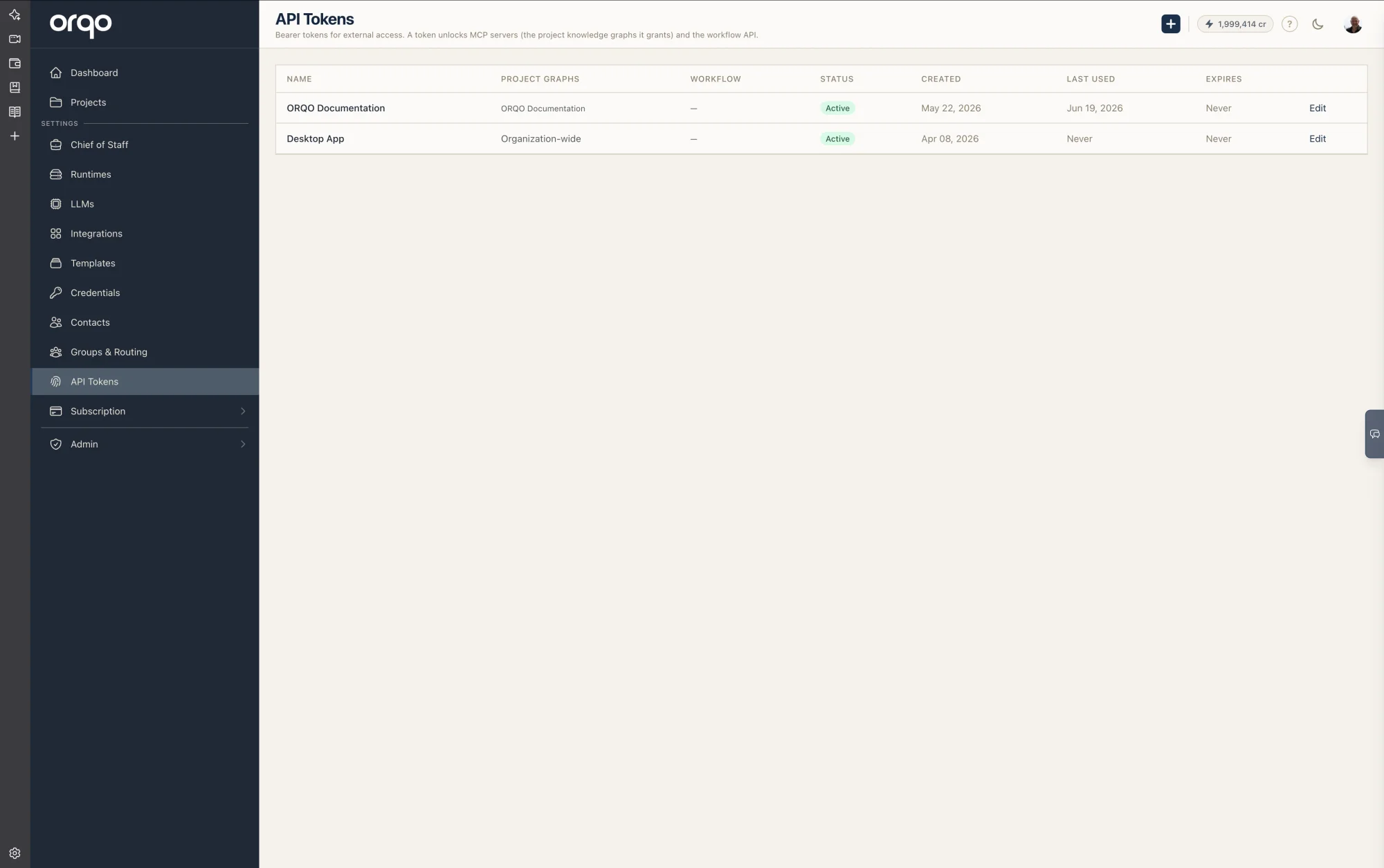
Open API Tokens from the sidebar (/tokens). Create a token:
- Name — a label to identify it later.
- Projects — pick none for an organization-wide token, or select one or more projects to scope the token to that set.
The token value is shown once, right after creation. Copy it immediately — it can't be retrieved later. If you lose it, regenerate the token (which rotates the value and breaks any client still using the old one).
Every project's MCP settings tab has a Generate quick token for this project button. It creates a token already scoped to that project and drops you on the tokens page with the value and a ready-to-paste config snippet.
2. Turn on "Expose as MCP Server"
Open the project, go to its settings, and switch to the MCP tab. Flip on Expose as MCP Server.
- The toggle is disabled until the project has Long-Term Memory enabled — turn that on first.
- Once on, the tab shows the live endpoint, a copy-paste client config, and the list of tokens that currently grant this project.
Repeat for each project you want external clients to reach. Access for a connected client is always the token's project grants ∩ the projects with this toggle on.
3. Configure your MCP client
Point your client at the single endpoint with your token in an Authorization: Bearer header.
For clients that support remote (HTTP) MCP servers natively — Claude Code, VS Code's MCP support, and similar — use the native HTTP form:
{
  "mcpServers": {
    "my-memory": {
      "type": "http",
      "url": "https://orqo.ooopps.com/mcp",
      "headers": { "Authorization": "Bearer YOUR_ORQO_TOKEN" }
    }
  }
}
For clients that only support local (stdio) MCP servers — such as Claude Desktop — bridge to the remote endpoint with mcp-remote:
{
  "mcpServers": {
    "my-memory": {
      "command": "npx",
      "args": [
        "-y",
        "mcp-remote",
        "https://orqo.ooopps.com/mcp",
        "--header",
        "Authorization: Bearer YOUR_ORQO_TOKEN"
      ]
    }
  }
}
Replace YOUR_ORQO_TOKEN with the token from step 1. npx runs the bridge on demand — no separate install needed if you have Node.js.
orqoThe example above uses "my-memory" as the server key on purpose. Some clients prefix every tool with the server key (<key>__<tool>). Since ORQO's tools are already named orqo_kg_search, orqo_docs_list, and so on, choosing "orqo" as the key produces awkward double-prefixed names like orqo__orqo_kg_search. Any short, non-overlapping key — my-memory, kb, your project's name — avoids this.
Restart or reconnect your client. It discovers the orqo_* tools automatically.
The tools your client gets
Once connected, the client sees these tools, all scoped to the projects it can reach. The everyday loop is overview → search → navigate for reading, plus upload → status for contributing.
orqo_kg_overview
A table of contents for the project's knowledge: every concept domain (a cluster of related knowledge, such as "PostgreSQL" or "Customer Feedback") with its unit count. For each domain it also gives an entry node — the orientation unit that serves as the domain's front door.
This is the best first call when the client has no starting point. Instead of guessing a search query, it can read the overview, then jump straight into a domain via orqo_kg_navigate on the entry node. Domains are listed largest-first.
orqo_kg_search
Semantic search across the accessible projects. Returns ranked knowledge units with short previews and the navigation edges available from each. Several optional parameters refine the results:
limit— how many results to return (default 10, up to 50).min_score— drop matches below a similarity threshold, so only strong hits come back.domain— restrict the search to a concept domain. Pass a single domain to narrow hard, or an array of domains to union-search across several at once (useful for cold-start questions whose material spans domains). Domain names come fromorqo_kg_overview.recency_weight—0.0–1.0(default0= rank by meaning only). Raise it to favor recently-authored knowledge when "what's happening lately" matters as much as the topic. It re-ranks the topical matches by recency — it doesn't surface off-topic recent units.since— an ISO date (YYYY-MM-DD). Return only knowledge authored on or after it — for "what changed since…" questions. Pair it withrecency_weight: 1.0for newest-first.
Each result carries an id to hand to orqo_kg_navigate.
orqo_kg_navigate
Open a node by its id and get its full content plus its entire neighborhood in one call — connected nodes grouped by relation: deeper, broader, why, consequences, how, examples, context, related, sources, next, and previous. Each neighbor comes with a short preview, so the client sees everywhere it can go next without follow-up calls.
A node can legitimately appear under more than one group. That's not duplication — it means the node plays several roles. For example, a procedure reached by going deeper also shows up under how, because it is both more detail and an actionable step. Reading it once covers both roles.
Two optional behaviors:
direction— narrow the response to a single relation group, handy when one group is large and you want it in isolation.sequential_context— also return the N units immediately before and after the focused node in document order, so the client can read the surrounding passage as it appeared in the original source.limit— cap how many neighbors come back per relation group (default 10), to keep a richly-connected node's response manageable.
orqo_kg_stats
Counts per accessible project — total knowledge units, relations, and domains. A quick way for the client to tell whether a project holds enough memory to be worth searching.
orqo_docs_list / orqo_docs_get
Browse and read the raw documents in the project's library. orqo_docs_list enumerates documents (optionally filtered to a folder) as a tree, a folder summary, or a flat list. orqo_docs_get fetches a specific document's text by filename. Together they let a client read source material directly, alongside the classified knowledge it reaches through search and navigation.
Contributing knowledge
An external client can add to a project's memory — but not by writing graph units directly. Instead it contributes a document, and ORQO's knowledge pipeline does the structuring: extracting atomic, properly-typed knowledge units and filing them under the right domains. This keeps the graph's quality and shape under ORQO's control no matter which client is connected. The client supplies content; the classifier remains the expert.
Contribution is asynchronous. An uploaded document is queued, not folded into the graph on the spot, so contributing is a two-step loop: upload, then poll for status.
orqo_upload_document
Add a document (markdown or plain text) to the project's library so ORQO can classify it into the knowledge graph.
filename(required) — e.g.penguin-migration-notes.md.content(required) — the document body, as markdown or plain text.folder— optional folder to file it under.suggested_domain— an advisory hint about the domain/topic this belongs to.related_to— an advisory hint describing what the document relates to, as context for classification.
suggested_domain and related_to are hints only. The classifier is the expert and may override them — it decides the final domain and how the content is broken into typed units. The document does not appear in the graph immediately; the call returns a confirmation that it was queued, with the orqo_document_status call to track it.
orqo_document_status
Poll the classification status of a document contributed via orqo_upload_document, identified by filename (plus optional folder if the name is ambiguous within the project). It reports one of:
- In progress — still being classified.
- Classified — done, with the number of knowledge units created and the resolved domain (which may differ from any
suggested_domainyou passed). - Failed — classification could not complete, with the error where available.
- Skipped — not classified, because the project's knowledge graph is off or the file type isn't classifiable.
A typical session
orqo_kg_overview— see which domains exist and where to start.orqo_kg_search— find the units relevant to the question (narrow withdomainormin_scoreif needed).orqo_kg_navigate— open the best hit and follow its relations (why, how, examples…) to the exact answer.
Because the graph is typed, the client usually reaches what it needs in two or three steps rather than a long string of similarity searches — the same efficiency that benefits ORQO's own agents. See Long-Term Memory for the model behind it.
Security
- Two-gate access — a project is reachable only when a token grants it and its Expose as MCP Server toggle is on. Either switch, set to off/excluded, blocks access.
- Instant revocation — flip a project's toggle off, or revoke the token, to cut access immediately. Revoking or regenerating a token breaks only the clients using that token.
- Narrow surface — the gateway lets a client read a project's knowledge and documents, and contribute new documents for classification. It does not let an external client write graph units directly, nor manage your organization, projects, or workflows. Contributed documents go through ORQO's classifier like any other source, so a connected client can't bypass the pipeline or reshape the graph by hand.
- Bearer-authenticated — every request is authenticated before it reaches any tool. Treat the token like a password; never commit it to source control. Use a placeholder in shared configs and inject the real value from a secret store.
Learn more
- How ORQO Connects — every inbound and outbound path on one page
- Long-Term Memory — what the knowledge graph is and how it's built
- Knowledge Navigation — the relations behind deeper, why, how, and the rest
- API — trigger workflows programmatically